
AI video tools are becoming very popular. One of the newest tools is Sora, a video creation platform that can turn text ideas into short AI videos. Many creators use it to make cinematic clips, animations, and creative content with very little effort.
Sometimes you may want to save these videos on your computer. Maybe you want to edit them, post them on social media, or keep them for later use.
This guide explains how to download Sora videos on PC step by step. It uses simple methods that work for most users.
You may also like: Download Sora Videos without Watermark (Guide)
What Is Sora?
Sora is an AI video generator developed by OpenAI. It creates videos from simple text prompts or images. Instead of filming scenes, you describe what you want and the AI generates the video automatically.
For example, you could type something like:
A cinematic sunset over a futuristic city with flying cars.
Sora will turn that description into a short video clip.
Many creators use it for:
- YouTube videos
- Social media clips
- creative storytelling
- marketing visuals
The platform can generate different styles such as realistic, animated, cinematic, or surreal videos.
Why People Download Sora Videos on PC?
There are many reasons someone might want to download Sora videos.

Offline viewing
You can watch your videos anytime without internet.
Editing
Downloaded videos can be edited in tools like Premiere Pro or CapCut.
Social media posting
Many creators download Sora videos and upload them to TikTok, Instagram, or YouTube.
Backup
Saving your video on your computer protects it if something happens to your account.
Method 1. Download Your Own Sora Video Officially (With Watermark)
This is the easiest and safest method. If you created the video yourself, Sora usually provides a download option.
Step by step process
- Open the Sora platform in your browser.
- Go to your generated videos.
- Open the video you want to download.
- Click the three dots menu.
- Choose the download or export option.
- The video will save as an MP4 file on your computer.
Many Sora videos are exported in MP4 format, which works on almost every device and video editor.
Where the video will save
Your file usually downloads to:
Downloads folder on your PC
You can then move it anywhere you want.
Method 2. Download Sora Videos Using SorDownloader.com (Without Watermark)
Sometimes you may want to download a shared Sora video link. In this case you can use an online downloader.
This Sora Downloader video downloader tool work in your browser. You do not need to install software.
This tool allow users to paste a Sora video link and download it instantly in MP4 format and without watermark.
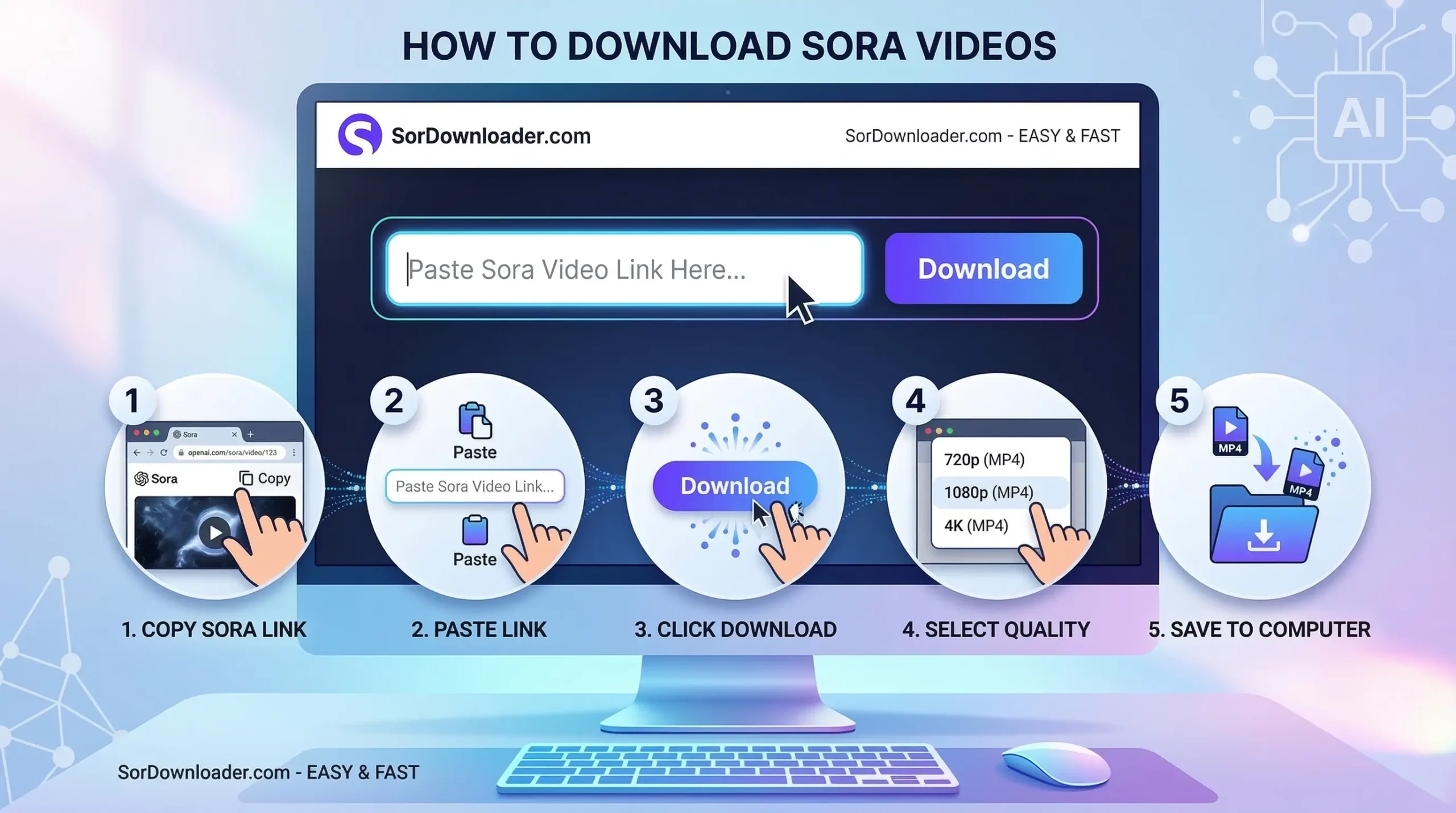
Step by step guide for using SorDownloader.com:
- Copy the Sora video link.
- Open an online Sora downloader website.
- Paste the video link in the input box and wait for few seconds usually 3-5 seconds.
- Click download button.
- You will see without watermark video in mp4 format.
- Save the video to your PC.
The video will download within a few seconds.
Benefits of SorDownloader
- No software installation
- Works on Windows and Mac
- Fast download process
- High quality video output
This is very useful tool because it make downloading simple for beginners. Downloading Sora video as MP4 on Windows computer is not that easy before.
Method 3. Use a Browser Extension (With Watermark)
Another option is a browser extension.
Some Chrome extensions allow users to download Sora videos directly from the video page.
These tools usually add a download button on the video player.
Basic process
- Install the extension in Chrome.
- Open the Sora video page.
- Play the video.
- Click the download button.
- The video saves to your computer.
Some extensions allow one click downloads directly from the video page.
This method is useful if you download videos frequently.
Method 4. Download Using Browser Developer Tools (With Watermark)
This method is slightly advanced but very useful.
Sometimes the download button is missing. In that case you can use your browser developer tools.
Steps
- Open the Sora video page.
- Right click on the page.
- Click inspect.
- Open the network tab.
- Play the video.
- Look for the video file link.
- Open the file in a new tab.
- Right click and save the video.
This method works because the browser loads the video file during playback.
It is commonly used when websites do not provide direct downloads.
Best Video Format for Sora Downloads
Most Sora videos are downloaded in MP4 format.
This is the best format because:
- Works on Windows and Mac
- Compatible with editing software
- Good quality with smaller file size
MP4 is also the most common format for YouTube and social media.
Common Problems When Downloading Sora Videos
Sometimes users face small issues.
Here are the most common ones.
Download button missing
Use developer tools or an online downloader.
Video not playing
Refresh the page and try again.
Low video quality
Select the highest resolution when downloading.
Link not working
Make sure the video link is correct and public.
These problems are easy to fix once you know the right method.
Final Thoughts:
Sora is changing the way people create videos. With simple text prompts, anyone can generate cinematic AI clips in seconds.
But sometimes you need the video file on your computer.
The good news is that downloading Sora videos on PC is very simple.
You can do it in several ways.
- Use the built in download option
- Use an online Sora downloader
- Install a browser extension
- Use browser developer tools
The easiest method is downloading directly from Sora if the option is available.
For shared videos, online tools usually work best.
Once the video is saved on your PC, you can edit it, share it, or store it safely.